Sales Navigator filters that find buyers who reply
The ten Sales Navigator filters that decide who you reach, the ones that ruin a lead list, and what to write down before you search.

Founder of Blen11 min read
On this page
About ten of Sales Navigator's filters decide who lands on your lead list. They are Geography, Industry, Company headcount, Current job title, Seniority level, Keywords, Years of experience, Years in current company, Years in current position and Posted on LinkedIn. Most of the rest are guesses LinkedIn makes about people, filters that describe whoever is logged in, or shortcuts to your own saved lists.
The list gets good before you touch any filter, when you write down exactly who you're after. Below is how we build lead lists for founders at Blen, including the filters we stopped using and why.
Write the targeting down before you open a search#
Most bad lead lists start with someone clicking filters until the result count looks healthy. Nobody decided who the list is for, so you only find out it's wrong after the invites have gone out.
We write a one-page lead list thesis first. It has three parts: who we're targeting, the company, and the person. Every filter gets a line, and every line gets a value or one of two words. "Any" means a descriptive filter was left open on purpose. "None" means a switch like Posted on LinkedIn is off. A blank line is a decision nobody made.
Here is the template. Copy it, fill in the values, and only then open Sales Navigator.
WHO WE'RE TARGETING
One sentence on the person. One sentence on why they buy.

THE COMPANY
Industry:
Company headcount:
Company type:
Company HQ location:

THE PERSON
Current job title:
Seniority level:
Geography:
Years of experience:
Years in current company:
Years in current position:
Profile language:
Keywords:
Posted on LinkedIn:
Changed jobs:
Three rules keep it honest.
- One target per list. If you sell to mid-sized manufacturers and to government agencies, that's two lists with two theses. Their filters pull in different directions, so one search trying to cover both ends up describing neither.
- A filter line holds the label and the values, and nothing else. Reasons go in your own notes. That's what lets someone read the whole thesis in about a minute.
- Someone who knows the buyer signs it off before the list is built. For our clients that's the founder, and nothing gets searched until they've said yes.
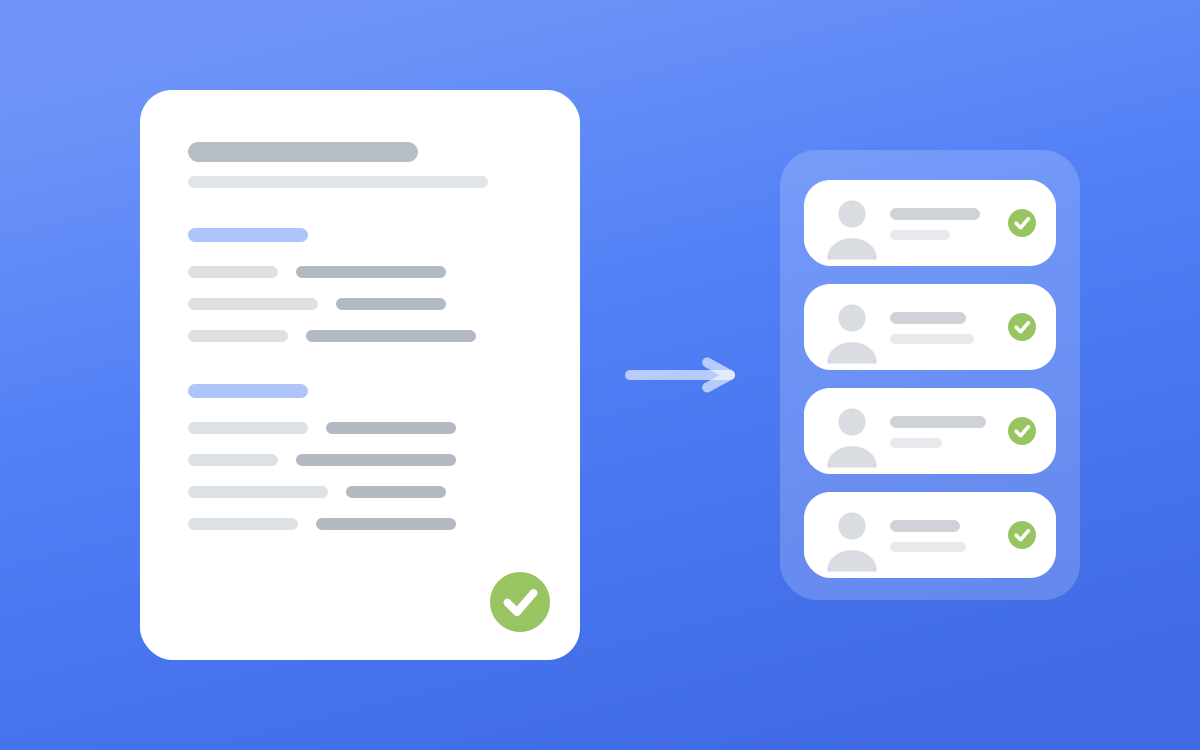
The list is the second step of getting clients on LinkedIn, right after a profile worth landing on.
The filters that change who you reach#
These are the filters that go into nearly every thesis we write, and how we set each one.
| Filter | What it does | How we set it |
|---|---|---|
| Geography | Where the person is | The countries you can sell into |
| Company headquarters location | Where their company is based | Instead of Geography, when the company's base matters more |
| Industry | LinkedIn's fixed industry list | The exact industries, never a broad parent |
| Company headcount | Employees at their company | The bands your buyers sit in, such as 11-50 and 51-200 |
| Current job title | Their current title, matched as text | Real title variants, grouped with Boolean |
| Seniority level | LinkedIn's rank label | A net around the titles, never the only role filter |
| Keywords | The search bar above the results | The concept no filter covers |
| Years of experience | Total career length | 6 to 10 years and More than 10 years for most buyers |
| Years in current company | Time at the employer | Leave out Less than 1 year for most offers |
| Years in current position | Time in the seat | Read together with the one above |
| Posted on LinkedIn | Posted in the last 30 days | On, unless the pool is too small |
Current job title, written the way people write it#
Titles are matched as text, so the filter only finds the words people put on their profile. Include CEO, Chief Executive Officer and Founder & CEO, plus the local version in markets that use one, like Geschäftsführer in Germany or Directeur Général in France. Group the variants with Boolean instead of adding ten separate entries. There are examples further down.
Seniority level is a safety net#
There's no seniority field on a LinkedIn profile, so this filter is LinkedIn's own reading of someone's title. In the lists we build it misfiles people often enough that we never rely on it alone. A founder whose title says Managing Partner can land under Owner / Partner, under CXO, or under nothing at all. Use it to widen a title search and let the title strings do the real work.
Years of experience, because titles lie#
This is the most underrated filter in the tool. A 26-year-old "Head of Innovation" at a 15-person startup passes a title and seniority search without trouble. Setting Years of experience to 6 to 10 years and More than 10 years is what gets you people who have been around long enough to own a budget.
Years in current company and Years in current position#
Time at the company tells you how long someone has owned the problem you solve. A person three months into a new job is still learning where the coffee is, and rarely signs anything with a stranger. Time in the position is the other half. Long at the company but new in the seat usually means a recent promotion, and that's often the best person to talk to.
Keywords for what no filter can express#
Structured filters only know what LinkedIn has structured, like industry, size, title and location. Keywords search the profile itself, which is where concepts like "venture client", "Industrie 4.0" or "China sourcing" live. No filter will ever have a value for those.
LinkedIn says keyword results "may include related keyword variations and not just exact keyword matches" (opens in a new tab), so treat a keyword match as a strong hint.
Keywords have two costs. They match anyone who once wrote the word, including in a job they left five years ago or a line about their degree. And they shrink a pool fast, so a three-term AND string can take a search of thousands down to a few dozen. Let the structured filters set the boundary and use keywords to sharpen inside it.
Posted on LinkedIn, the best quality filter we have#
It keeps only leads who created a post in the last 30 days (opens in a new tab). That removes dormant accounts, people who rarely open LinkedIn and are unlikely to see your request any time soon. The window is fixed at 30 days. The only time we switch it off is when the pool is too small to afford it, and then the thesis says so.
Industry, named exactly#
Industry uses LinkedIn's fixed list, so "deep tech" and "B2B SaaS" aren't options. Map your loose word onto real values like Semiconductors or Biotechnology Research. LinkedIn's own definitions note that selecting an industry also pulls in its child industries (opens in a new tab), so name the specific ones you want instead of a broad parent.
Company headcount and Company type#
Headcount comes in fixed bands, from Self-employed up to 10,001+. Pick the bands your buyers sit in. Company type only earns a line when it removes someone, for example Privately Held when you want to cut listed corporates.
Filters that wreck a lead list without warning#
None of these throw an error. They just hand you a list that looks fine and replies badly.
Every "your" filter describes the seat running the search#
A whole group of filters is relative to whoever is logged in. Connection, Connections of, TeamLink connections of, Past colleague, Shared experiences, Following your company, Viewed your profile recently and Account has buyer intent all answer a question about the account holder. LinkedIn defines buyer intent as leads at accounts that showed interest "in your company in the past 30 days" (opens in a new tab).
That's useful on your own seat. If an assistant, a colleague or an agency runs the search on theirs, every one of those filters describes their network and their company, and you end up with people warm to someone else. We strip all of them from client searches for exactly that reason.

Function#
Function is the department LinkedIn assigns to a role. We removed it from our searches completely. Title and the person's own profile tell you who they are, and when LinkedIn guesses the department wrong the filter drops a good lead without telling you.
Tenure and Changed jobs in the same search#
Changed jobs finds people who started a new role in the last 90 days (opens in a new tab), so everyone it returns has under a year in the seat. Put it next to a Years in current position floor and the two contradict each other.
Pick one. A tenure list reaches settled people who own the problem. A movers list reaches people with a fresh mandate who are still deciding what to change. If both are worth having, build two lists.
Filters that don't exist in lead search#
Annual revenue, Company headcount growth, Department headcount, Job opportunities and Fortune are account filters only (opens in a new tab). Lead search, the one that returns people you can invite, has none of them, and neither search has a filter for funding or tech stack.
So when your ideal buyer is "Series A, hiring engineers, 5 to 20 million in revenue", company size is the only part you can filter. The rest you judge person by person when you review the list, which is the next section.
Boolean search in Sales Navigator#
LinkedIn's rules are short. Type AND, OR and NOT in capitals, put exact phrases in quotation marks, and group terms with parentheses. Wildcards like * aren't supported (opens in a new tab), and brackets or braces are read as ordinary characters.
| You want | Field | String |
|---|---|---|
| Founders and CEOs, however they write it | Current job title | founder OR "co-founder" OR CEO OR "managing director" |
| Heads of engineering under any title | Current job title | "head of engineering" OR "vp engineering" OR CTO |
| Directors, minus assistants to directors | Current job title | director NOT assistant |
| A concept no filter covers | Keywords | "venture client" OR "corporate venturing" OR "open innovation" |
| German-speaking managing directors | Current job title | "managing director" OR Geschäftsführer OR Geschäftsführerin |
From search to list#
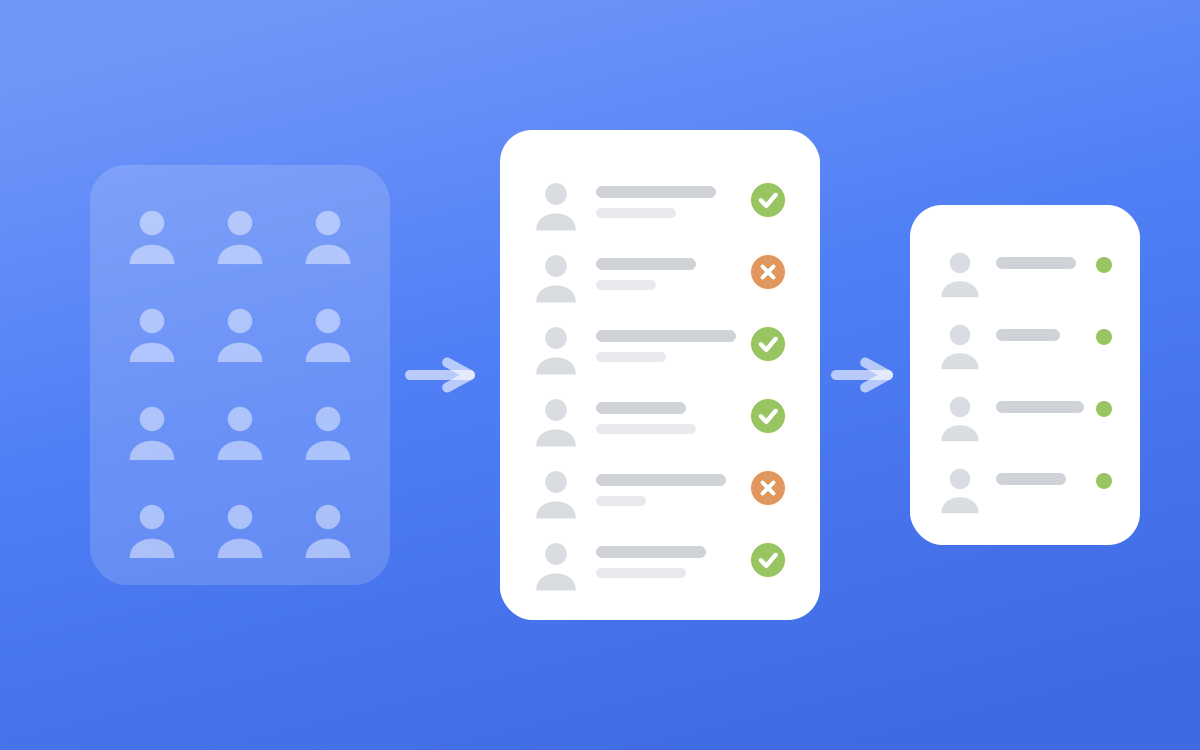
A search is a pool. The list is what's left after someone reads it. We run every list in three steps.
- Collect. Pull a batch of candidates from the search. Nothing gets sent and no one gets messaged at this stage. We pull 400 at a time.
- Judge. Read each person against the thesis. There are two hard lines. Never approve a competitor, meaning someone selling what you sell to your buyers. And skip anyone who plainly can't serve the goal. Everything between those lines is a yes, and when in doubt, approve. A borderline person who ignores you costs one message, while a good person you filtered out is a conversation you never have.
- Commit. Only approved people who aren't already on the list get added. That also means removing anyone the sending account is already connected to, because nobody should get a cold opener from someone they already know.
Two practical limits shape how big a search should be. Sales Navigator lets you view up to 2,500 lead results across 100 pages (opens in a new tab), so a bigger search needs splitting by geography, headcount band or title group. And when a search keeps returning people who are already on your list, it's worn out. Build a new search instead of paging deeper.
Then there's sending. We cap connection requests at 15 a day per account, a few minutes apart, during working hours, so 400 approved people is over five weeks of weekday invites. Is LinkedIn automation safe explains why we pace it that way. The invite itself is covered in connection request messages, and what to say after they accept in LinkedIn outreach messages.
Is Sales Navigator worth it?#
It's worth it if you prospect every week and your buyer is defined by seniority, experience or recent activity, rather than by a short list of company names.
Free LinkedIn people search has filters for locations, current and past company, school, industry, profile language, connections and keywords (opens in a new tab). It has nothing for years of experience, company headcount, seniority or recent posting, and those are the filters doing most of the work in this post. Free accounts also run into a commercial use limit (opens in a new tab) when their searching looks like prospecting, and LinkedIn says it can't show you how many searches you have left.
It's harder to justify in a few cases.
- Your buyers are a named list of 30 companies you can look up one at a time.
- You send a handful of invites a month.
- Nobody has written down who the list is for, because the filters only help once you know who you want.
For the founders we work with, the thesis comes first, the founder approves it, and only then does Blen build the list and start the invites.
Frequently asked questions#
How many filters does Sales Navigator have?#
By our count of LinkedIn's filter definitions page (opens in a new tab) in September 2026, lead search has 38 filters and account search has 16. Lead filters are grouped into Company, Role, Personal, Buyer intent, Best path in, Recent updates and Workflow. Keywords sit in the search bar on top of all of them.
Can you filter leads by company revenue in Sales Navigator?#
Not in lead search. Annual revenue and Company headcount growth only exist in account search, which returns companies instead of people. In a lead search, Company headcount is the only size signal, so check revenue or funding by hand when you review the list.
What's the difference between Geography and Company headquarters location?#
Geography filters by where the lead is located. Company headquarters location filters by where their current company is headquartered. Use Geography when the person's location matters, for time zones or meeting in person, and headquarters location when the company's home market is what makes them a buyer.
How many results can a Sales Navigator search show?#
You can view up to 2,500 lead results across 100 pages (opens in a new tab), or 1,000 account results across 40 pages. If a search is bigger than that, split it into smaller searches by geography, headcount band or title group so nobody is left past page 100.